Once your trial period has ended, your organization must have an active subscription to continue using Qoezion. Your annual subscription includes a number of activations depending on the plan you have chosen.
One activation corresponds to one accepted application (volunteer/staff) per event.
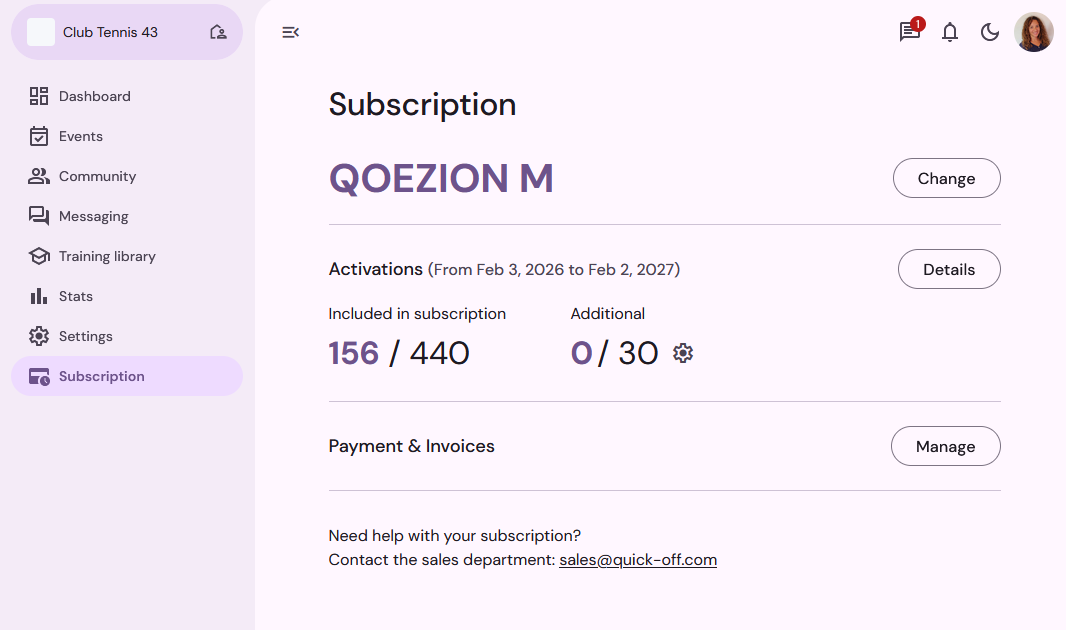
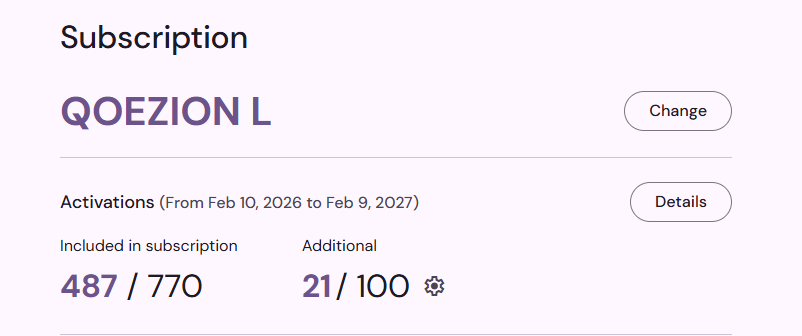
In your organization space, in the Subscription menu, you will find information about your subscription: current plan, start and end dates of the current subscription period, details about activations, and access to invoices.
How to subscribe to Qoezion
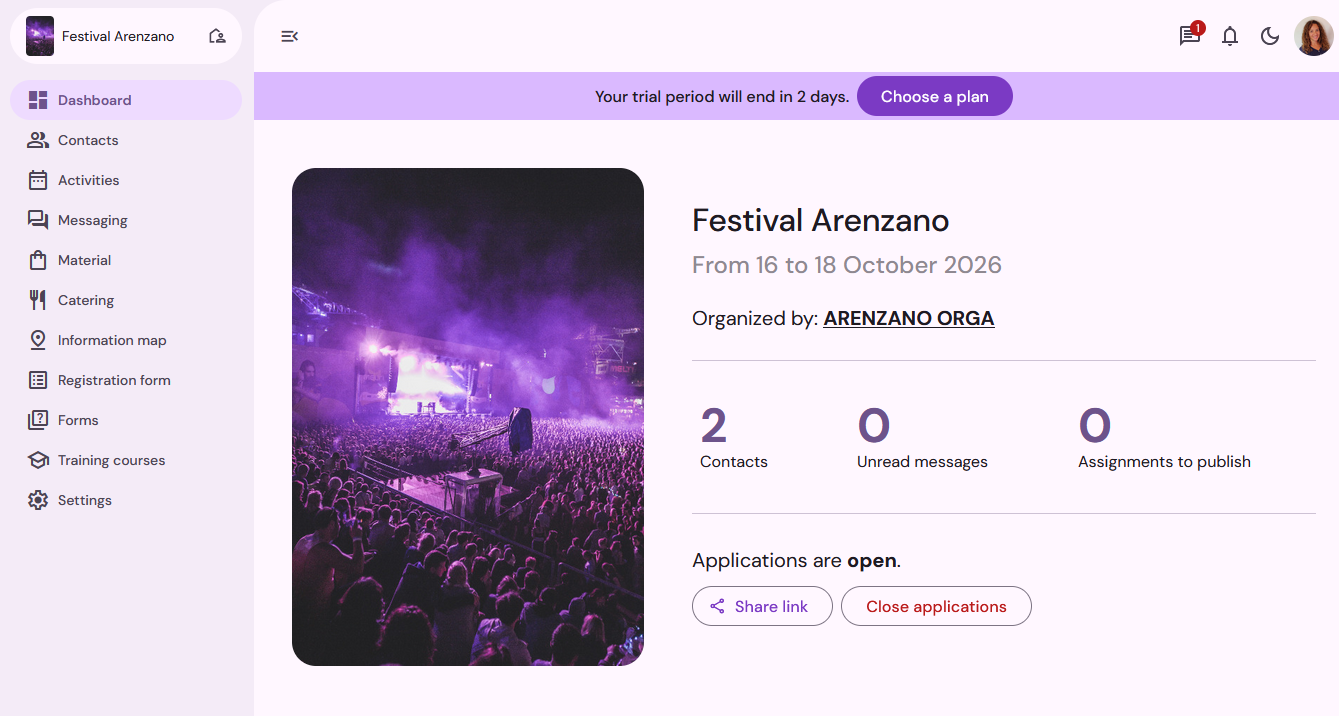
During or after your trial period, a banner in your event space allows you to access details of the available subscription offers. Each package includes a number of activations, a specific pricing for additional activations, and according to the offer you can also benefit from training sessions, priority support, or the assistance of a dedicated project manager.
All subscriptions give you access to all of Qoezion's features.
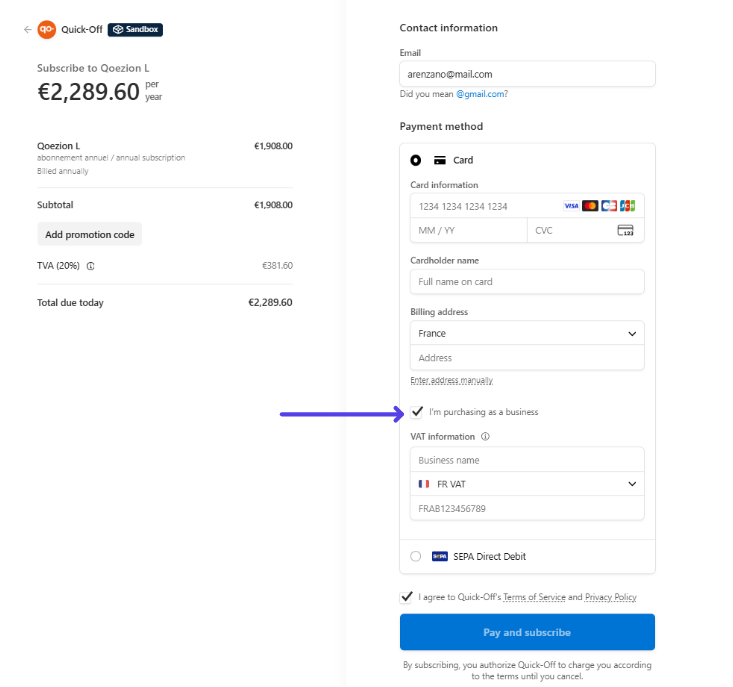
Choose the plan that suits you best to be redirected to the payment platform, then enter your billing details and proceed with the payment to activate your subscription immediately. By checking the box I am purchasing as a business, you can add the name of your organization and VAT number.
Qoezion subscriptions are annual (billed once for the entire year), and the subscription is automatically renewed each year unless you decide to cancel it.
If you have specific needs, contact our sales department (sales@quick-off.com) to obtain a quote for a customized offer.
Activations monitoring
Each Qoezion subscription includes a certain number of activations per year. One activation corresponds to one accepted application (volunteer/staff) per event. If the same person is accepted for two separate events during the year, this counts as two activations (i.e., 1 activation per event).
Duplicate protection: to ensure fair billing, a person is never counted twice for the same event over a 12-month period. This rule covers cases of multiple status changes (accepted, then waitlisted, then re-accepted).
Note: Canceling an accepted application does not cancel the activation used. However, if you accept the same teammate again for the same event, the activation will not be counted twice.
To track the activations already used on your current subscription, go to your organization space > Subscription menu. You will find the number of activations included in your subscription, the number of activations already used, and any additional activations. You will also receive an email notification when you exceed 80% of activations used and when all your activations have been used.
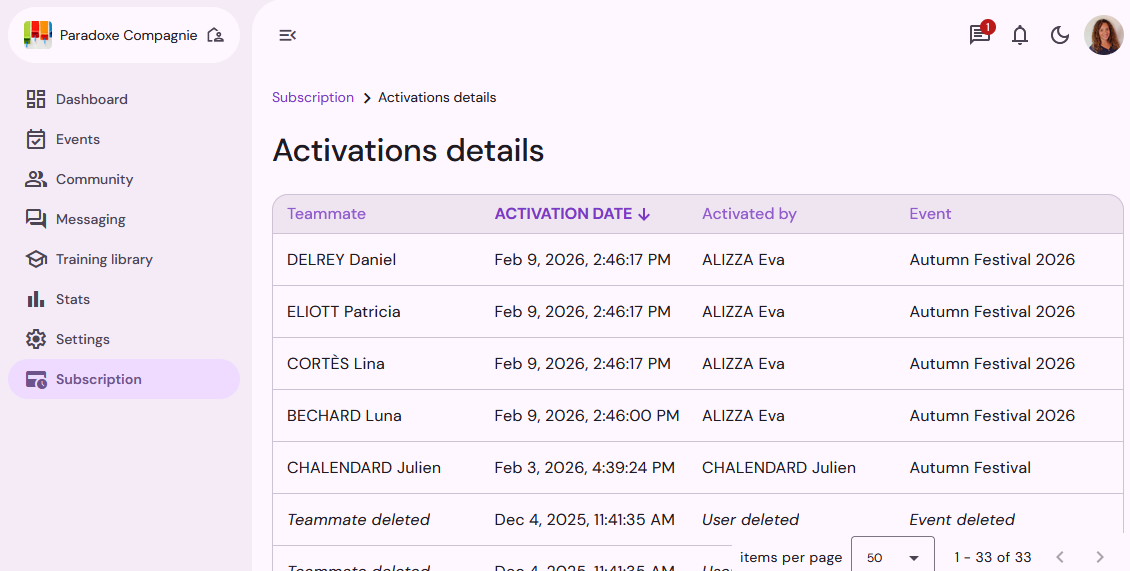
By clicking on Details, you can view the list of activations performed: teammate name, activation date, name of the user who performed the activation, name of the event concerned.
Authorizing additional activations
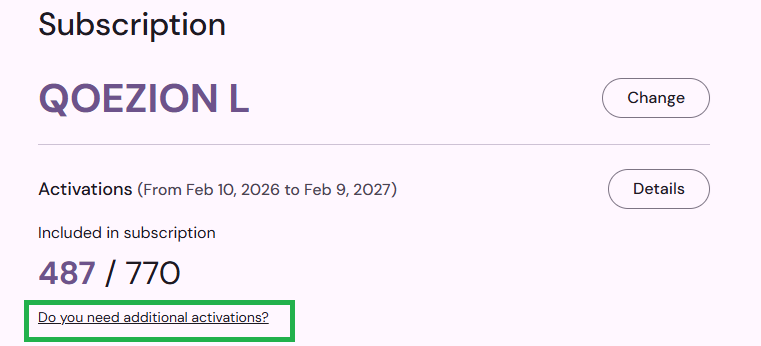
By default, when you reach the activation limit included in your subscription, you will no longer be able to accept teammates on an event until the end of your current subscription period. However, if you wish, you can authorize the use of additional activations: go to your organization space, Subscription menu, and click on Do you need additional activations?
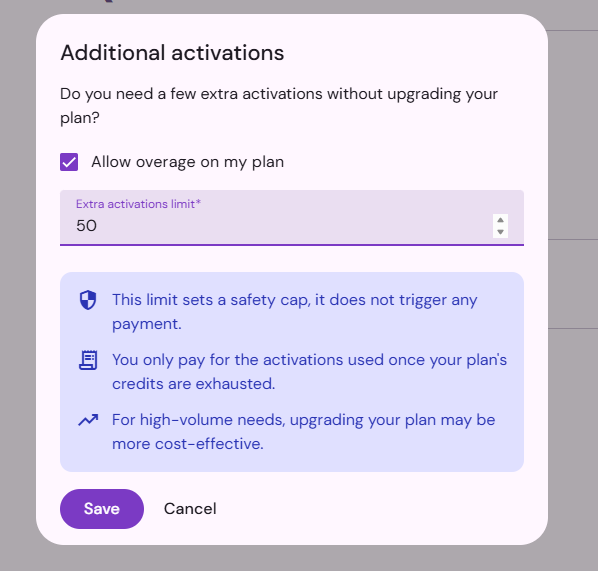
Tick the box Allow overage on my plan and specify the limit for additional activations allowed. This is a security cap that should not be exceeded, to avoid accidentally using too many additional activations. You will only be billed for the additional activations you actually use, at the rate specified in your subscription.
Billing for your additional activations will be triggered once you reach a sufficiently high amount (a few dozen activations). If you use few activations and the amount remains very low, billing will be triggered after a few weeks, regardless of the amount. You will be debited according to the payment method specified when you subscribed, and you will find your invoice in your organization space.
If you have a customized offer, additional activations will be invoiced according to the terms indicated in your contract. For more information, contact our sales department (sales@quick-off.com) or your dedicated project manager.
Accessing my invoices and updating my billing information
To access your invoices or change your billing information, go to your organization space, Subscription > Payment & Invoices, and click on Manage.
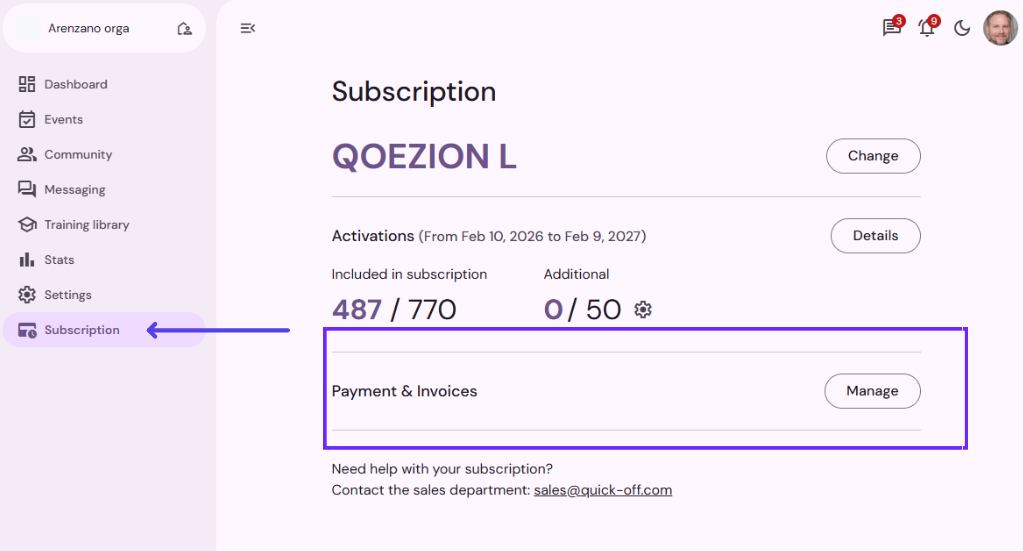
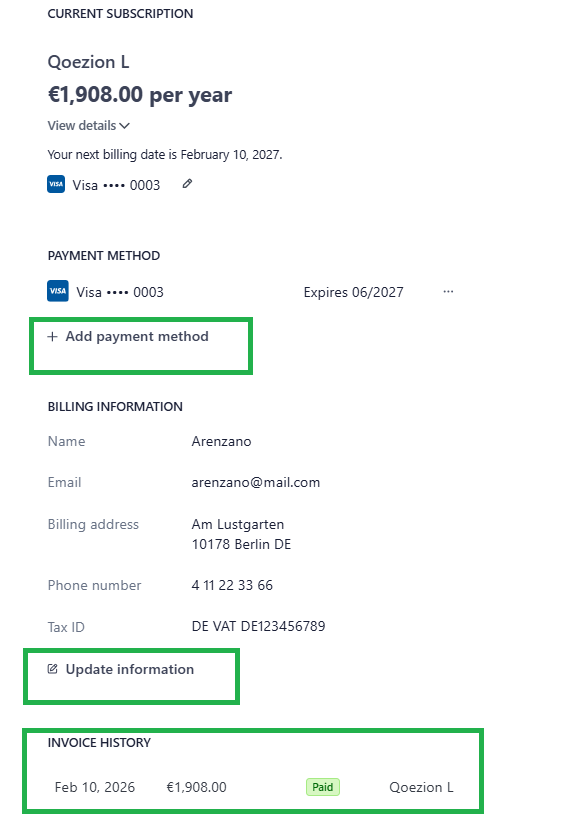
You will be redirected to the payment platform where you can add a new payment method, change your billing details, or view your payment history. Click on a payment in the history to download the corresponding invoice.
If you have a customized offer, your invoices will be sent to you by our accounting department, according to the terms defined in your contract. For more information or to request any changes, contact our sales department (sales@quick-off.com) or your dedicated project manager.
Change your subscription
To change your subscription plan, go to your organization space, Subscription menu, and click on Change. Choose a new plan and proceed to payment.
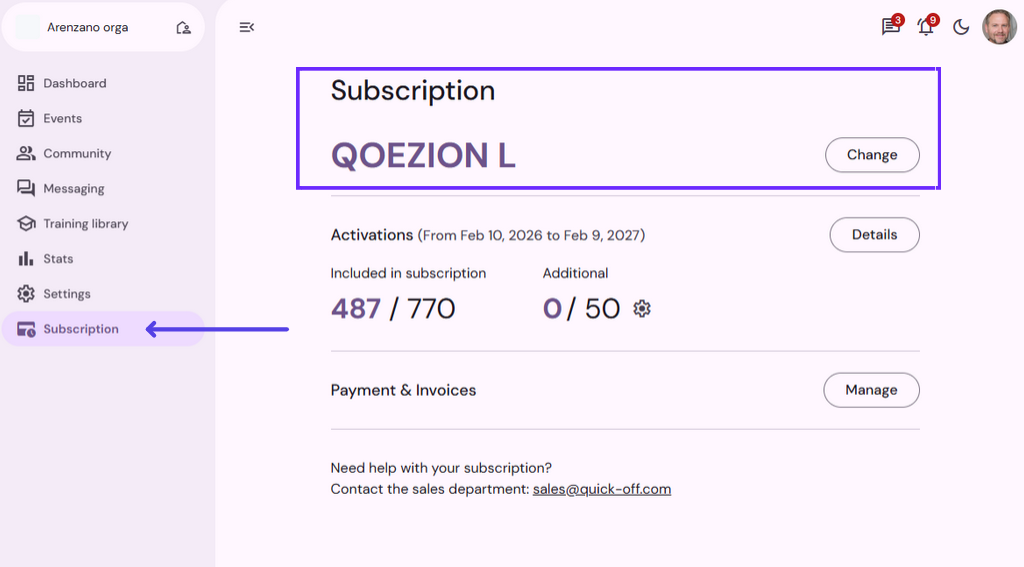
If you choose a plan that is higher than your current offer, the change will be immediate, and the amount to be paid will be adjusted proportionally for the remaining period. If you had any additional activations pending billing, this amount will also be invoiced when you change your subscription.
To switch to a lower plan, the change will take effect at the end of the current period, on the renewal date of your subscription. In the meantime, you will continue to enjoy the benefits of your current subscription.
If you are currently on a customized offer, please contact our sales department (sales@quick-off.com) or your dedicated project manager if you wish to change your subscription.
Cancel subscription
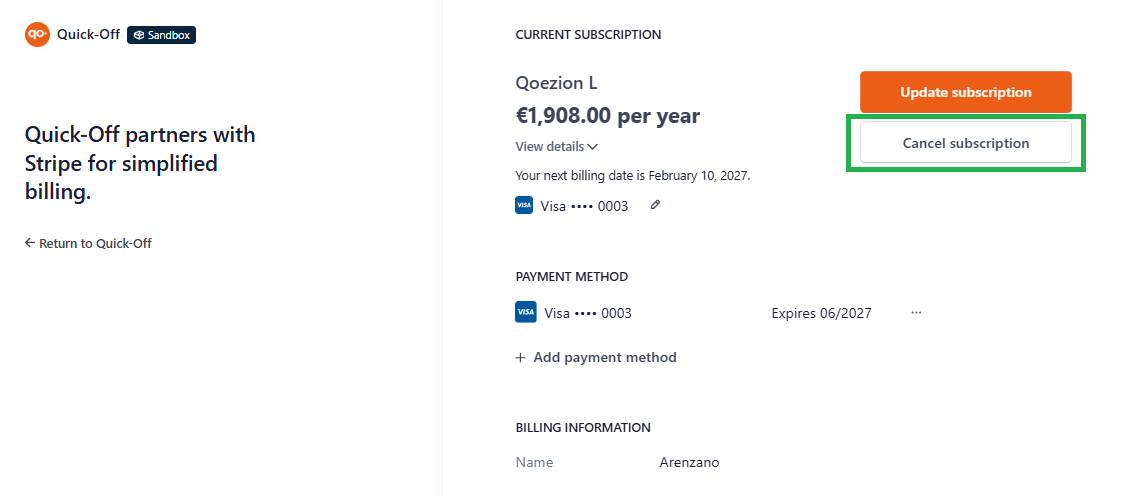
To cancel your subscription, go to your organization space, Subscription menu, and click on Manage in the Payment & Invoices section. Then click on Cancel Subscription.
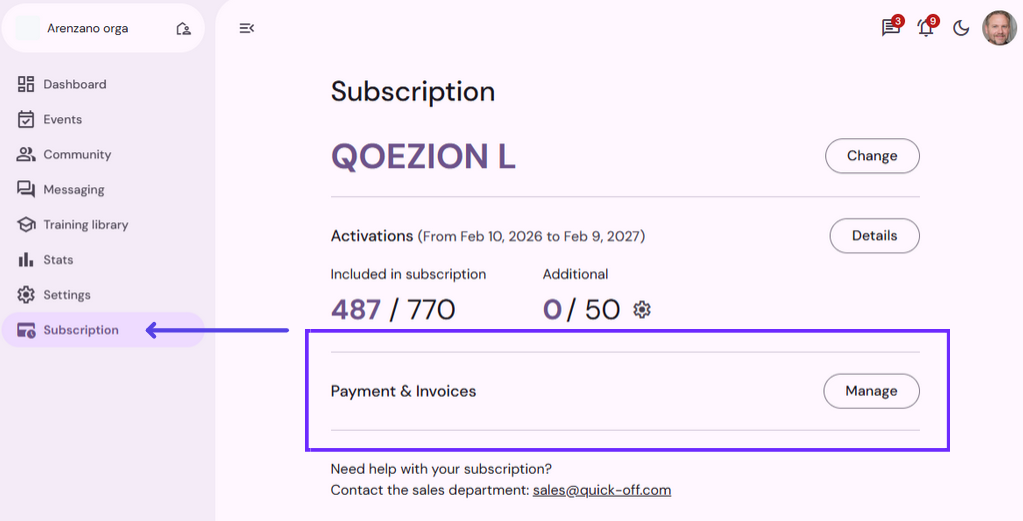
Your subscription will be canceled at the end of the current period. In the meantime, you will continue to enjoy the benefits of your current subscription.
If you currently have a customized offer, please contact our sales department (sales@quick-off.com) or your dedicated project manager if you wish to cancel your subscription.