Once your training course has been validated in the organization's library, you can make it available for a specific event.
Go to your event space, then select Services > Training Courses from the menu
Click Share a Training Course
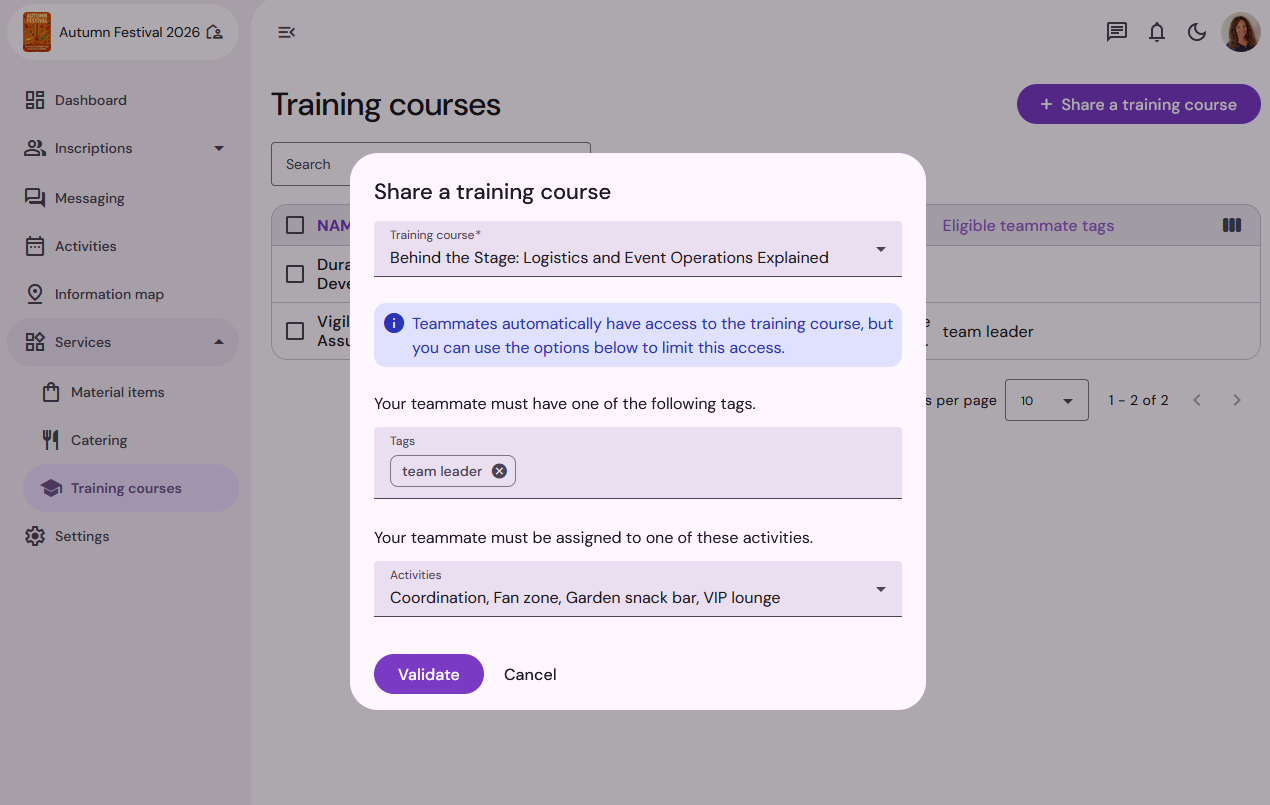
Who can view the course?
As soon as a course is shared, it automatically becomes available in the Teammate Space for volunteers whose application status is “Accepted.”
🔔 Note on notifications: Making a training course available does not trigger an automatic notification. Make sure to inform your volunteers, for example by using Qoezion’s Messaging system to invite them to log in to their space.
How to target the audience?
To make your training courses available only to a specific group of teammates, you can restrict access in two ways:
By Tags: Ideal for specific profiles (e.g., assign the “Eco-Responsibility” training only to volunteers with the “CSR” tag).
By Activity: Ideal for specific assignments (e.g., assign the “Fire Safety” training only to volunteers assigned to the “Prevention” activity).
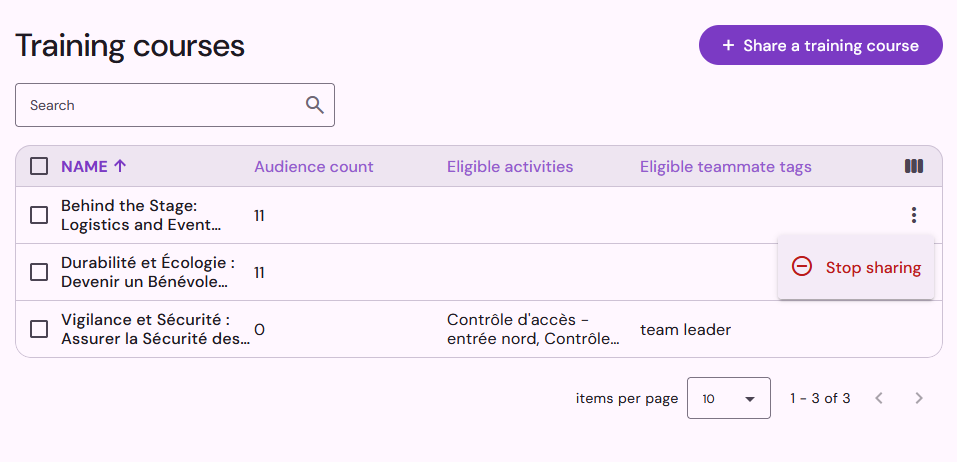
Stop Sharing
If you want to revoke access to a training course for an event, click the additional menu (three vertical dots) at the end of the row for the relevant training course, then select the option to stop sharing.
Track teammates' progress
Qoezion allows you to monitor your teams' progress:
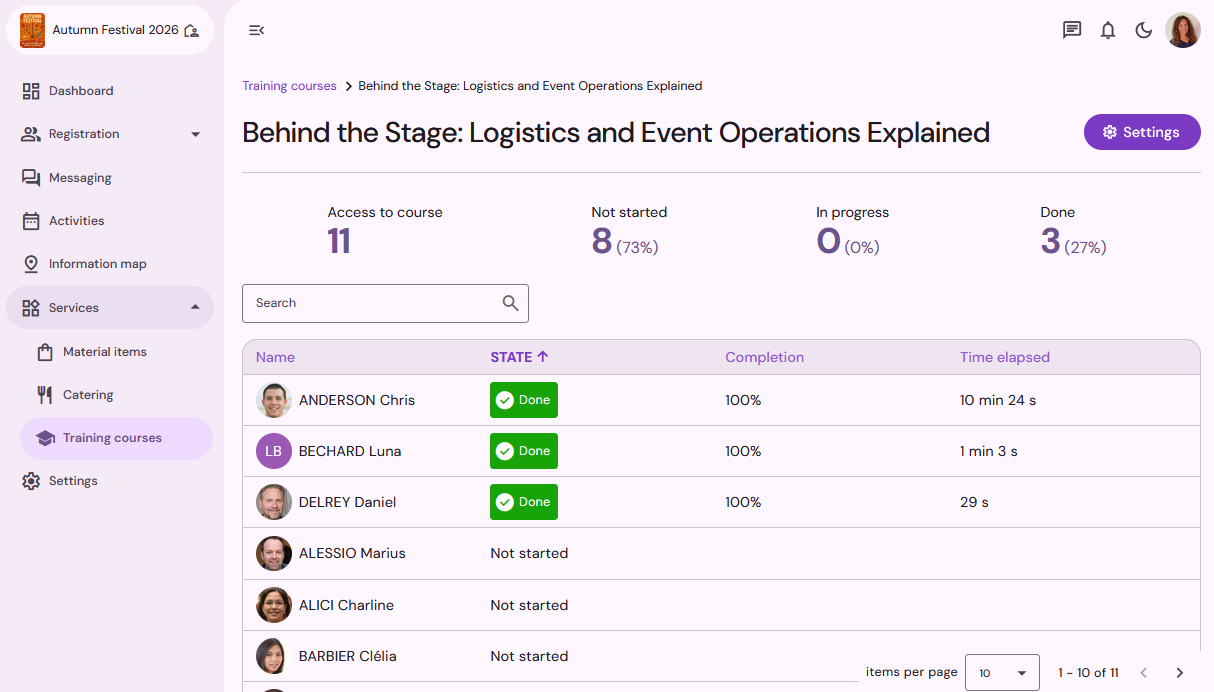
Overall progress tracking
From your Event Space, under Services > Training courses, you can track the overall progress of your teammates on the training courses shared in this event. Click on a training course in the list to access the progress report: there you will find the list of teammates who have access to the course and their progress status.
Individual Tracking (Contact profile)
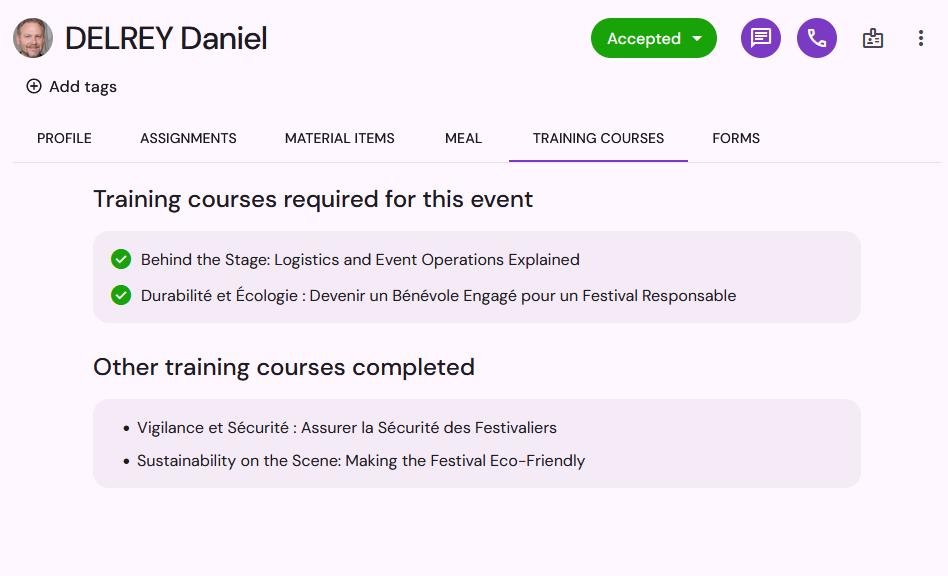
When you open a teammate's profile within the event, their complete training record is displayed:
For training courses shared in the current event: you can see whether they are In Progress or Completed.
For training courses taken during other events in your organization (and not shared in the current event): only Completed courses are listed to highlight the skills the volunteer has already acquired in the past.