
Qoezion is the staff and volunteer management tool developed by Quick-Off.
Creating a Qoezion account is free. Your account is personal and unique: you use it both to take part in events and to organize them. This article explains how to create it in a few minutes.
Before you start
Check these two points first:
You must be at least 15 years old. Otherwise, a message tells you that you must be at least 15 to sign up.
Each person needs their own email address. An address already used by a Qoezion account is refused. Each member of a family therefore needs their own address (see the FAQ at the end of this article).
Accessing Qoezion
To sign up, go to https://app.qoezion.com.
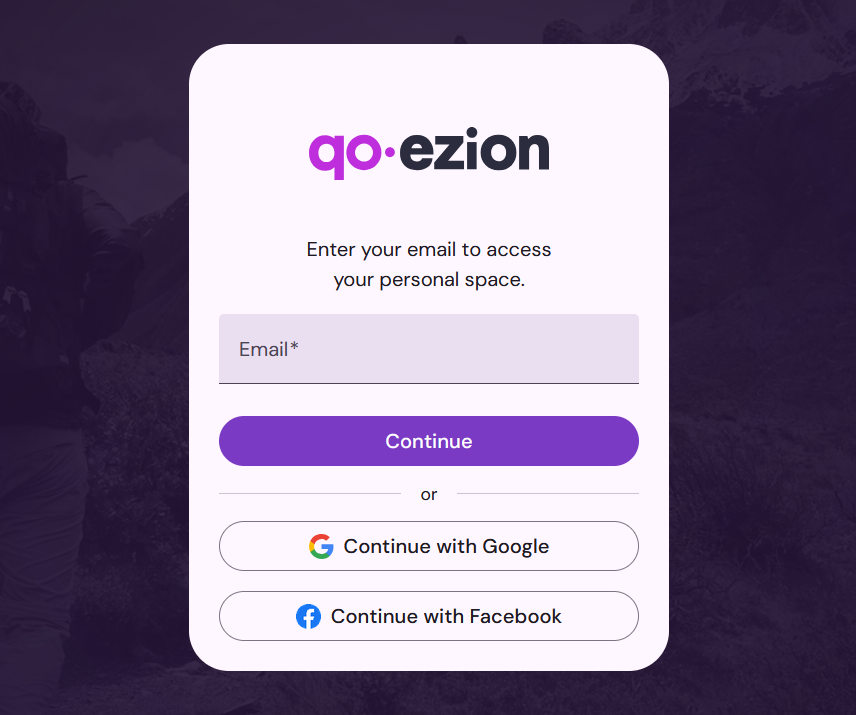
Qoezion offers several ways to sign up:
with your email address, no password needed: a code sent by email is enough;
with your Google account, via Continue with Google;
with your Facebook account, via Continue with Facebook;
with your organization's SSO, via Continue with SSO, if your organization has set one up.
All options lead to the same account creation form. If you enter an address that already has an account, Qoezion automatically takes you to the sign-in screen.
Signing up with your email address
No password is required: your address is confirmed with a code sent by email.
Enter your Email, then click Continue.
The Your personal space screen opens and your address is shown in a chip. To correct it, click the chip (pencil icon): you go back to the sign-in screen.
Fill in the requested fields (details below).
Tick I accept the terms of use. The privacy policy is shown below the button, with no box to tick. You can also select I would like to receive information from Qoezion, under Communication (optional), if you wish.
Click Continue. If any information is missing, a message appears under each field to complete.
The Verification screen asks for the 6-digit code sent to your address. Enter it in the Code received by email field, then click Continue.
Your account is created.
Field | Required | Good to know |
|---|---|---|
First name | Yes | — |
Last name | Yes | — |
Date of birth | Yes | At least 15 years old. Type it in the date format shown (separators are added automatically), or pick it with the calendar icon |
Phone | No | International format. Useful for receiving text messages from organizers |
What about a password? It is optional. To sign in again, just enter your email address and the code you receive. You can set a password at any time in Account settings › Password › Modify. You do need a password to sign in to the Qoezion Spot app, which does not offer sign-in by code yet.
Signing up with Google or Facebook
If you already have a Google or Facebook account, you can use it to create your Qoezion account.
Click Continue with Google or Continue with Facebook.
Follow the instructions from Google or Facebook and allow access.
The Your personal space screen opens, with the same form as for an email sign-up. Fill it in and tick I accept the terms of use.
Click Continue, then enter the 6-digit verification code sent to you by email.
Good to know. An account created with Google or Facebook has no Qoezion password. You can always sign in with Google, with Facebook or with a code sent by email. Only the Qoezion Spot app requires a password : set it in Account settings › Password › Modify.
Signing up with your organization's SSO
If your organization has set up SSO sign-in, click Continue with SSO and sign in with your organization's identity provider. You then fill in the same Your personal space form, followed by the verification code.
SSO is set up by the Qoezion team: if your organization would like it, contact us.
The verification code
Whichever way you sign up, Qoezion sends you a 6-digit code by email. Just type it in: the email contains no link to click.
The code is valid for 20 minutes.
Only the most recent code works: if you request a new one, the previous one is cancelled.
After 5 incorrect codes for the same address, entry is blocked until the end of the 20 minutes, even with the right code.
A successful sign-in resets these counters.
Depending on your email provider, the email may take a few minutes to arrive or end up in your spam folder. If your mailbox only accepts approved senders, allow the qoezion.com domain: it is also used for invitations and notifications about your events.
Signing in again later
Enter your email address, then click Continue. If your account has no password, Qoezion sends you a code straight away. If you have one, you can enter it or click Sign in with a code sent by email.
Troubleshooting
What you see | What to do |
|---|---|
Fields are flagged after you click Continue | Fill in each flagged field. Check your date of birth (15 years minimum), the phone number format and the terms of use box |
I didn't receive the code | Check your spam folder. Check the address shown in the chip, and click it to correct it if needed. Then request a new code, up to 5 within 20 minutes |
“The email verification code is invalid or has expired.” | The code was mistyped, is more than 20 minutes old, or a more recent code has been sent. Check what you typed and use the most recent code, or request a new one |
“This email is already used by an existing account.” | An account already exists at this address. Sign in with it, using your password or Sign in with a code sent by email |
FAQ
Can I use the same email address for several Qoezion accounts?
No. To protect everyone's privacy and personal data, each account must have its own email address. Even within a family, each person fills in their own application form and has their own teammate space, with their own schedule and messages.
Many free email services let you create a personal address easily. You can also forward messages from one address to another if you wish.
How do I delete my Qoezion account?
Click your avatar in the top right corner, then Account settings > Delete my account, at the very bottom of the page. Deletion is permanent and is confirmed with a code sent by email. Accounts that have been inactive for three years are also deleted automatically.
For more information, go to Delete my account